These posts are being re-created from old Jamf Nation posts not because they are the best but because they may have useful things that were mangled in the Jamf Nation transition to its most recent hosting platform.
That, & they were always supposed to be blog posts anyway… I didn’t have a blog then.
There may come a time when you need to delete a System Root certificate. This is not something you should do lightly, but, maybe a cert was installed by an update that you know is bad. Maybe a cert is expired. This isn’t a huge deal, but, there’s no reason for it to be there.
I open Keychain Access periodically & clean it up a bit. You can TOTALLY BREAK STUFF BY DOING THIS. It is a way, though, of seeing what’s installed on your computer. Remember installing an app from “BadGuy.com”? If not, why is there a certificate for that? Is the name of your company’s backup software really “StealAllYourData”? Why is there a stored password for that? You get the idea…
I am going to assume if you are messing around in Keychain Access you know what you’re doing.
Most objects in a keychain can be deleted in Keychain Access. That doesn’t mean you should, but, you can. You can delete things you created like stored passwords, your developer cert, or, items in System that get installed automatically by selecting them & hitting the delete key.
System Roots are special. Several years ago Apple blocked the ability to delete System Root certificates in Keychain Access. You can select them, you can view details, but, even with SIP disabled, selecting & hitting the delete key.
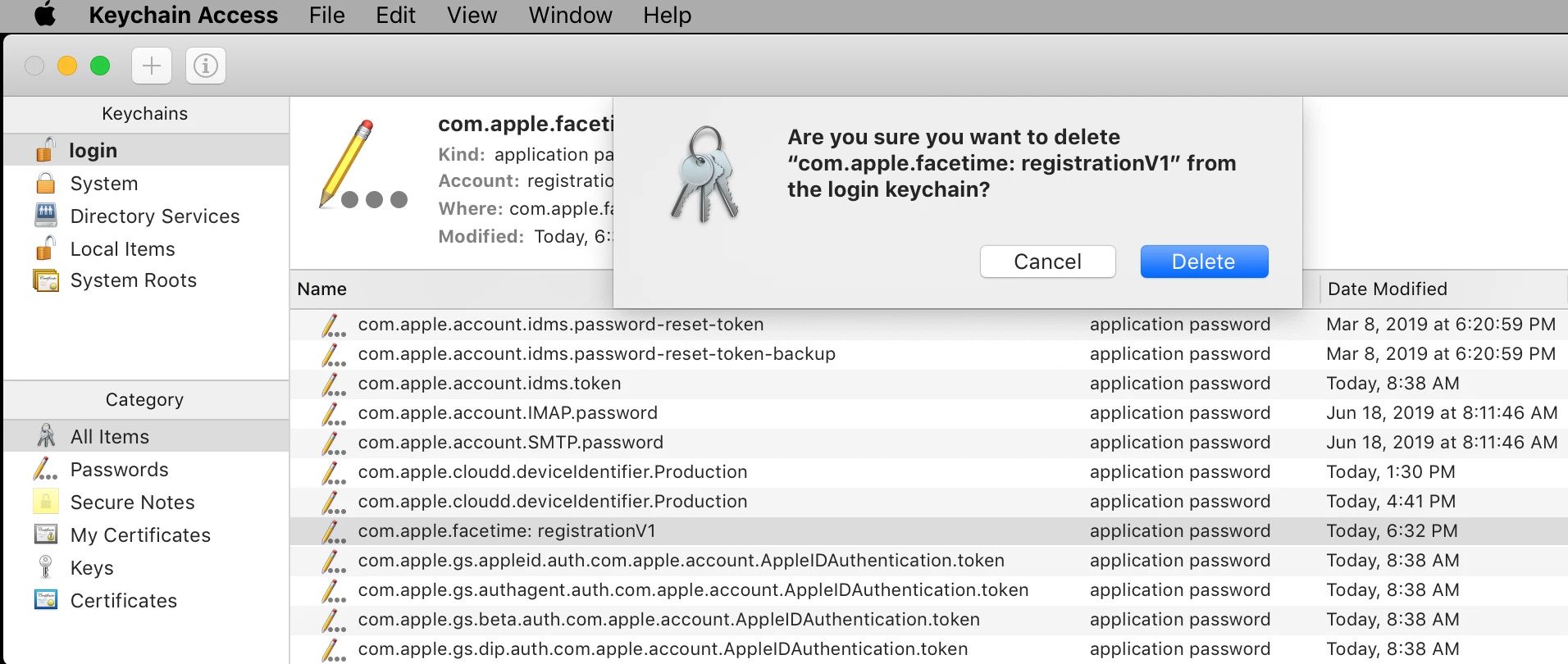
This simply yields your favorite alert tone. (I have always been a “Morse” guy…)
So, what to do?
The security binary is the “Command line interface to keychains…” according to its man page. Understanding what this command does can be extremely useful for doing all sorts of things.
We, however, are only doing 1 thing & we have 1 additional problem: not only does SIP have to be disabled to remove a System Root cert with the security binary, the system volume has to be writable. For macOS 10.14 & below, no problem. For macOS 10.15 & beyond the system volume is read-only, unless, you disable SIP & run:
sudo mount -uw /
Here is an interactive script for removing a System Root certificate:
#!/bin/bash


# variables & text / ops functions
keychn='/System/Library/Keychains/SystemRootCertificates.keychain'

txtack(){ printf "\nCertificate deleted!\n\n" ; }
txtcrt(){ printf "\nUse one of the following options to identify a System Root Certificate for deletion:\n\n1) Common Name\n2) SHA-1 hash\n\n" ; }
txtdel(){ printf "Do you want to permanently delete the following System Root certificate?\n\n%s\n%s\n\nType \"yes\" at the prompt to delete or \"no\" to cancel...\n\n" "$dspnam" "$dsphsh" ; }
txtent(){ printf "\nPlease enter \"1\" or \"2\". Thanks.\n\n" ; }
txterr(){ printf "ERROR: this certificate could not be found in the keychain.\n\n" ; }
txtmth(){ printf "\nPaste in the %s of the System Root Certificate you would like to delete.\nThe %s can be copied by secondary clicking on the certificate in Keychain\nAccess & selecting \"Get Info\":\n\n" "$method" "$method" ; }
txtnot(){ printf "The certificate was not deleted.\n\n" ; }
txtsip(){ printf "\nERROR: System Integrity Protection must be disabled to delete System Root\ncertificates. Restart the computer from the Recovery HD to disable SIP.\n" ; }
txtusr(){ printf "\nERROR: this script must be executed by the root user or with sudo!\n" ; }
txtyrn(){ printf "Please enter \"yes\" or \"no\". Thanks.\n\n" ; }

chkchk(){
    /usr/bin/clear

    if [ "$EUID" -ne 0 ]
    then
        txtusr; exit
    elif /usr/bin/csrutil status | /usr/bin/grep -i -q enabled
    then
        txtsip; exit
    fi

    macosx="$(/usr/bin/sw_vers -productVersion | /usr/bin/awk -F '.' '{print $2}')"
    macos11="$(/usr/bin/sw_vers -productVersion | /usr/bin/awk -F '.' '{print $1}')"

    if [ "$macosx" -gt 14 ] || [ "$macos11" -gt 11 ]
    then
        /sbin/mount -uw -o nobrowse / 2>&1 /dev/null
    fi
}

delcrt(){
    txtdel
    while true
    do
        read -r -p "delete> " yesno; echo
        case "$yesno" in
            YES | Yes | yes ) /usr/bin/security delete-certificate -Z "$shastr" "$keychn" ; txtack; exit ;;
            NO  | No  | no  ) txtnot; exit ;;
                          * ) txtyrn ;;
        esac
    done
}

delnam(){
    method="Common Name"

    txtmth; read -r -p "Common Name> " input; echo

    output="$(echo "$input" | /usr/bin/sed -e "s/'//g" -e 's/"//g')"
    shastr="$(/usr/bin/security find-certificate -c "$output" -Z "$keychn" | /usr/bin/awk '/SHA-1 hash:/{print $NF}')"

    if [ -z "$shastr" ]
    then
        echo; exit
    fi

    dsphsh="SHA-1 hash: $shastr"
    dspnam="Common Name: $output"
}

delsha(){
    method="SHA-1 hash"

    txtmth; read -r -p "SHA-1 hash> " input; echo

    shastr="$(echo "$input" | /usr/bin/awk '{gsub (" ","",$0); print}')"

    if /usr/bin/security find-certificate -a -Z "$keychn" | /usr/bin/grep -qx "SHA-1 hash: $shastr"
    then
        dsphsh="SHA-1 hash: $shastr"
        dspnam="Common Name: $(/usr/bin/security find-certificate -a -Z "$keychn" | /usr/bin/grep -A10 "$shastr" | /usr/bin/awk '   /"alis"<blob>="/{print substr ($0,18)}')"
    else
        txterr; exit
    fi
}

fixmnt(){
    if [ "$macosx" -gt 14 ] || [ "$macos11" = 11 ]
    then
        /sbin/mount -ur / 2>&1 /dev/null
    fi
}


# operations
chkchk; txtcrt
while true
do
    read -r -p "option> " option
    case "$option" in
        1 ) delnam; delcrt ;;
        2 ) delsha; delcrt ;;
        * ) txtent ;;
    esac
done
fixmnt
The script will exit if SIP is enabled & it will exit if not executed with root privilege.
It guides you through entering the Common Name or SHA-1 hash of the cert you would like to delete. Either identifier works. Where do you get this identifying information? Good question! One way is by secondary clicking on the System Root cert & selecting “Get Info” from the contextual menu.
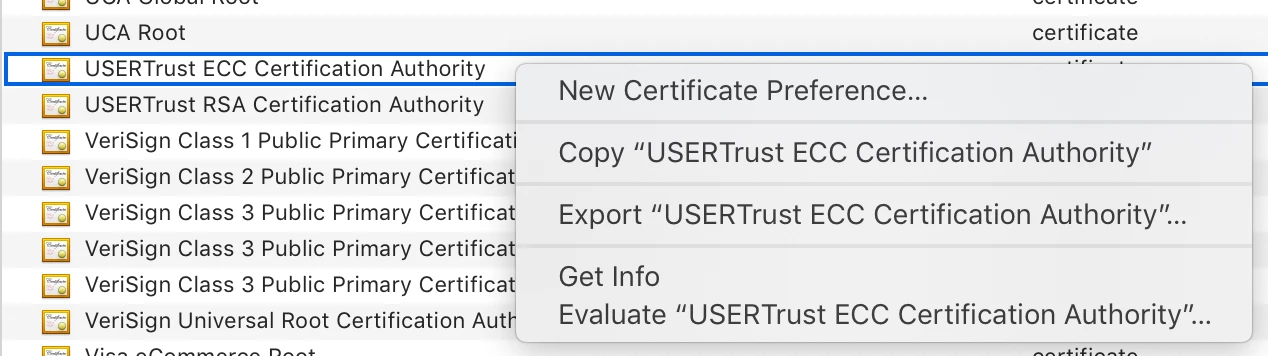
Copy either the Common Name:
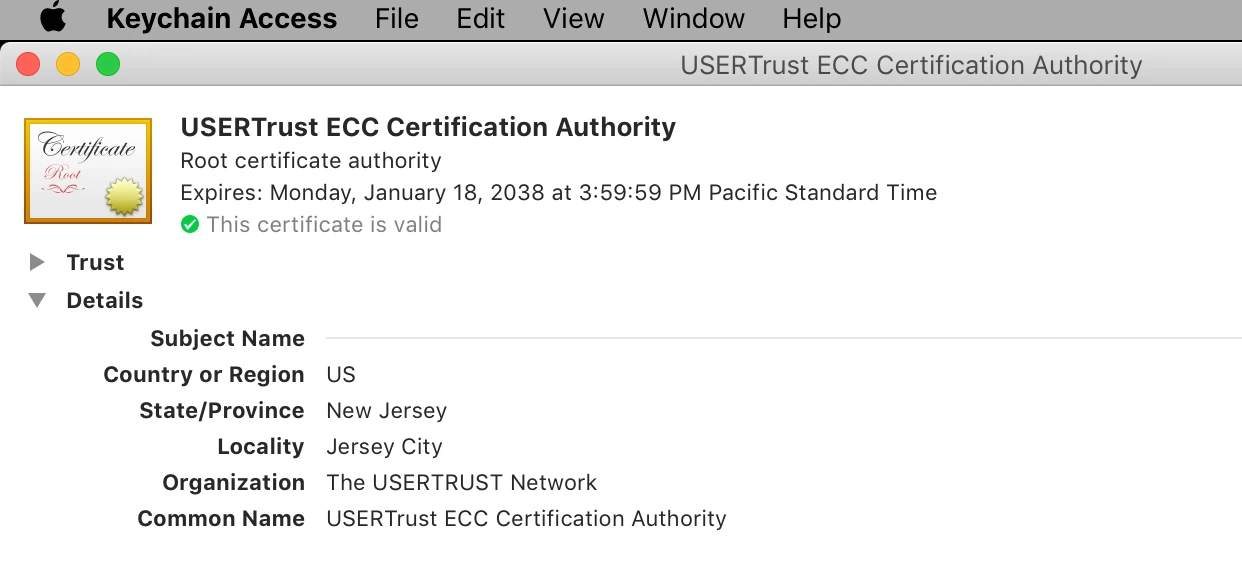
or the SHA-1 (the hash can be found by scrolling all the way to the bottom of the Details window.)

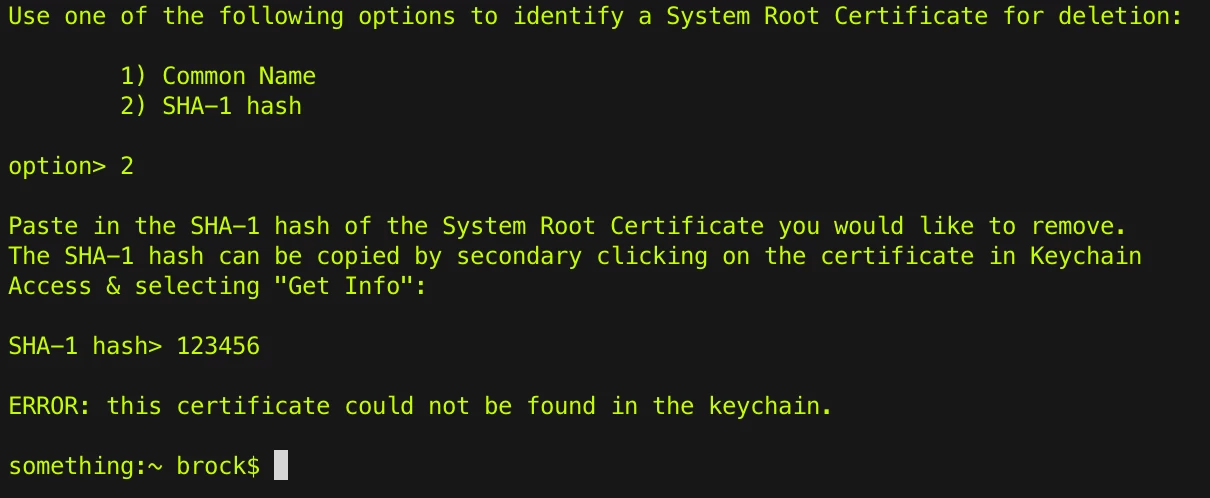
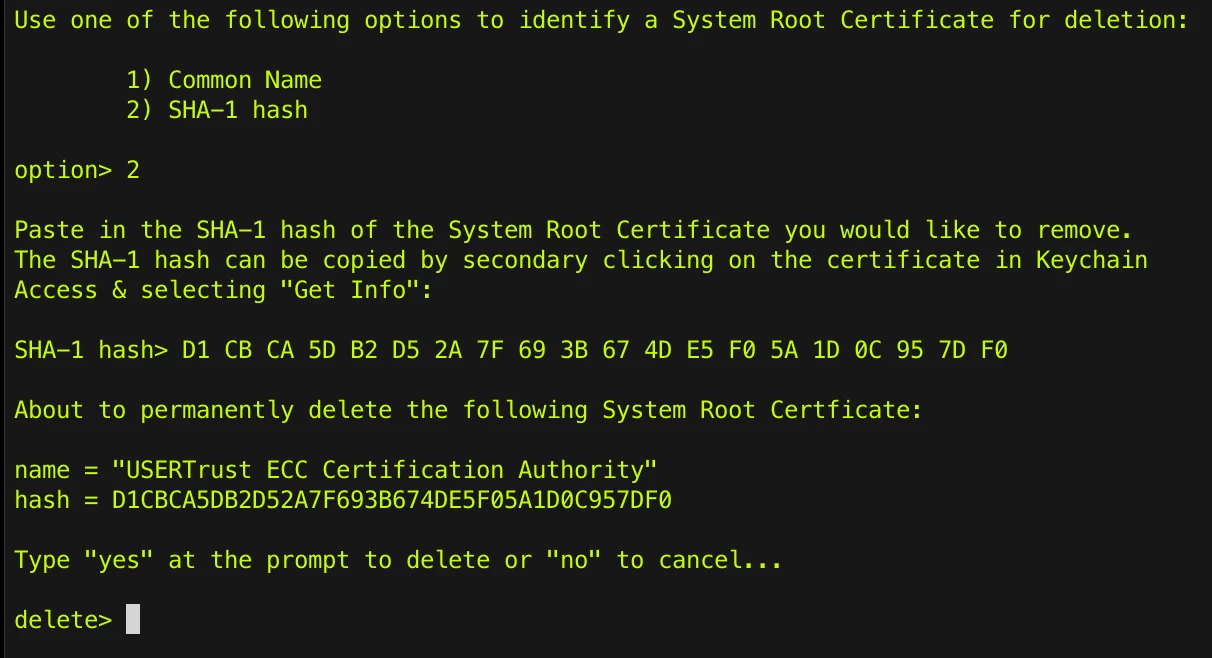
Paste the data you’ve copied into the script at the prompt. If you use the name, the script output will display the hash. If you use the hash, the script generates the name for verification. The script will error out if the SHA or name you’ve entered can’t be found:
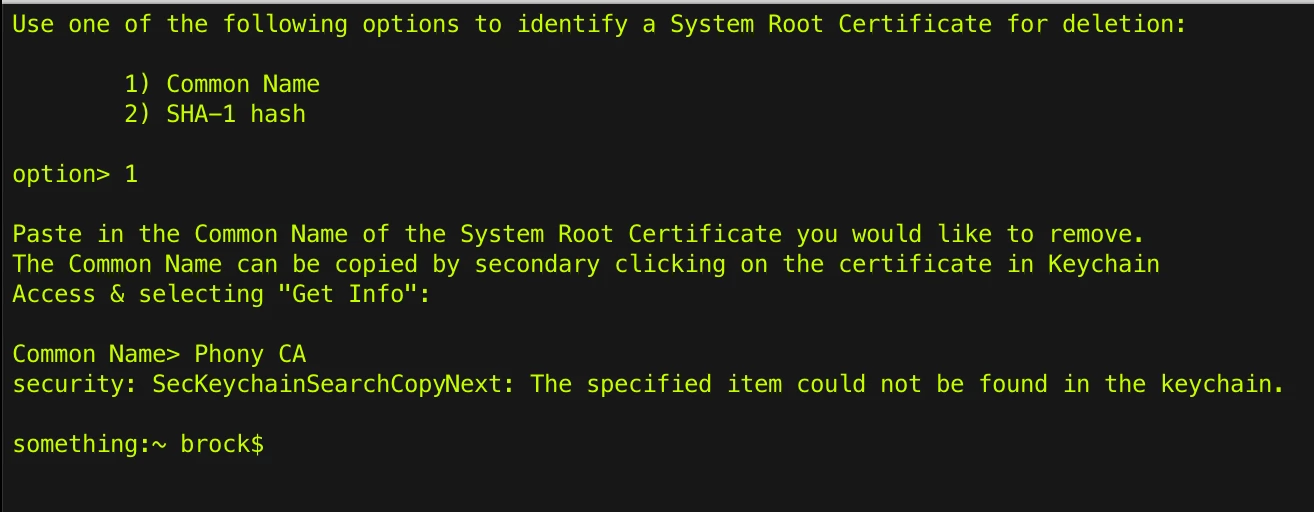
As a final emergency offramp you actually have to type in the word “yes” or “no” to act. I can hold your hand. I can’t do it for you. 🙂
As always I hope you find this informative, or, useful, or both, or dangerous & something you should never do. Enjoy! Be Careful!