NOTE: These posts are being re-created from old Jamf Nation posts not because they are the best but because they may have useful things that were mangled in the Jamf Nation transition to its most recent hosting platform.
That, & they were always supposed to be blog posts anyway… I didn’t have a blog then.
I’ve seen a few tricks for getting what Apple calls the Marketing Model name of a Mac in Terminal.
One uses the last 4 characters of the serial number in a curl command. This seems to work (it requires the -l flag on curl) but it may stop working because of changes to Apple serial numbers. However, there is no need to use curl to get this information…
- It is available on Intel Macs if
com.apple.SystemProfiler.plistexists. This.plistis created when the “About This Mac” menu item is opened. - It is available on Apple Silicon Macs in
ioregoutput.
Clicking “About This Mac” in the Apple menu launches the “About This Mac.app” located in /System/Library/CoreServices/Applications/ so it can be launched from a script with the open command. The “About This Mac.app” executes the System Information process. So, you must close “About This Mac” with a different command than the one you use to open it.

Oh, Apple, you kill me.
The Mac Marketing Model string includes the year a Mac was released. Because the “Model” computer attribute available in Jamf Pro collects the entire string it is almost useless for creating Smart Groups based on year (unless you really like clicking in the Jamf Pro GUI & making really dumb Smart Groups which include every Model name you manage.)
Thus, to wit, a Jamf Pro extension attribute script which:
- Allows you to determine the number of years back you want to declare as “too old” for your organization:
- Apple declares computers that are more than 6 years old as “vintage”
- Under normal conditions Apple will not perform repairs on or order parts for a “vintage” device
- Apple Silicon: collects Marketing Model from
ioreg - Intel: collects Marketing Model from
com.apple.SystemProfiler.plist(& creates it if it doesn’t exist) - Parses the string to collect the year
- Compares the year collected to the year set as “too old”
- Stores the year if the year matches your limit, or just says
noif it’s fine - Falls back to the model identifier string if the year can’t be collected
- You can deploy this to collect model year as a Smart Group value - no more Dumb Groups™
#!/bin/bash


# variables
crntusr="$(/usr/bin/stat -f %Su /dev/console)"
plistsp="/Users/$crntusr/Library/Preferences/com.apple.SystemProfiler.plist"
srlnmbr="$(/usr/libexec/PlistBuddy -c 'print 0:serial-number' /dev/stdin <<< "$(/usr/sbin/ioreg -ar -k 'IOPlatformSerialNumber')")"


# if cpu is Apple Silicon collect Marketing Model string from ioreg
# if com.apple.SystemProfiler.plist does not exist create it
# if cpu is Intel collect Marketing Model string from com.apple.SystemProfiler.plist
if [ "$(/usr/sbin/sysctl -in hw.optional.arm64)" = 1 ] && /usr/sbin/sysctl -n machdep.cpu.brand_string | /usr/bin/grep -q 'Apple' && /usr/bin/uname -v | /usr/bin/grep -q 'ARM64'
then
    mrktmdl="$(/usr/libexec/PlistBuddy -c 'print 0:product-name' /dev/stdin <<< "$(/usr/sbin/ioreg -ar -k product-name)")"
else
    if ! [ -e "$plistsp" ]
    then
        /usr/bin/sudo -u "$crntusr" /usr/bin/open '/System/Library/CoreServices/Applications/About This Mac.app'; /bin/sleep 1
        /usr/bin/pkill -ail 'System Information'; /bin/sleep 1
        /usr/bin/killall cfprefsd; /bin/sleep 1
    fi

    mrktmdl="$(/usr/libexec/PlistBuddy -c "print 'CPU Names':$srlnmbr-en-US_US" "$plistsp" 2> /dev/null)"
fi


# if that didn't work collect the Model Identifier, exit
if [ -z "$mrktmdl" ]
then
    echo "<result>$(/usr/sbin/sysctl -n hw.model)</result>"; exit
fi


# parse the Marketing Model string for the year
mdlyear="$(echo "$mrktmdl" | /usr/bin/sed 's/)//;s/(//;s/,//' | /usr/bin/grep -E -o '2[0-9]{3}')"

# compare year collected to year set as "too old"
if [ "$mdlyear" -lt "$(($(/bin/date +%Y)-7))" ]
then
    result="$mdlyear"
fi

echo "<result>${result:-no}</result>"
NOTE: some of the additional tests in the 1st conditional are due to Apple Silicon not necessarily reporting the correct architecture via uname if Rosetta is installed.
Feel free to share why having the year seems unnecessary to you, what else you may be using to do this already, or just let me know how bad & silly you think it is. If it’s useful to you, enjoy!
Source: https://community.jamf.com/general-discussions-2/collect-year-from-mac-marketing-model-name-25812
Comments Link to heading
keith_lytleNew Contributor
December 22, 2021
Thank you for writing this. I did have some trouble with a few older machines that have different language and country codes so I had to modify a couple things. To retrieve the Serial string to fill the value for modl, I had to add a new variable srlstr so that I could get the correct version of:
$snmb-en-US_US
Some older machines only have -en_US and in other languages or country codes this doesnt work at all.
minor modifications here:
# get model name, exit if null
if [ "$(/usr/bin/uname -m)" = 'arm64' ]; then
    modl="$(/usr/libexec/PlistBuddy -c 'print 0:product-name' /dev/stdin <<< "$(/usr/sbin/ioreg -ar -k product-name)")"
else
    srlstr="$(/usr/libexec/PlistBuddy -x -c "print 'CPU Names'" "/Users/$usnm/Library/Preferences/com.apple.SystemProfiler.plist" | /usr/bin/awk '/<key>/{print $1}' | /usr/bin/sed "s/<key>//g;s/<\/key>//g")"
    modl=($(/usr/libexec/PlistBuddy -c "print 'CPU Names':$srlstr" "/Users/$usnm/Library/Preferences/com.apple.SystemProfiler.plist"))
fi

if [ -z "${modl[*]}" ] || echo "${modl[*]}" | /usr/bin/grep "File Doesn't Exist"; then
    echo "$(/usr/sbin/sysctl -n hw.model)"
    exit
fi
this also seemed to eliminate the need to retrieve the serial number at all and add cycles to the process in the beginning.
brockwalters
Author
Valued Contributor
December 22, 2021
I have just revised this a bit as the logic at the beginning wasn’t quite right. It now only collects serial number if it has to & only creates plist if it has to. I also didn’t account for locales other than US so I am glad you were able to modify it. Thanks!
mani2care
Contributor
December 27, 2022
Hi All i tried this script its not working at all M1 and intel both are having error any latest version script any one having it supported for all the mac devices
brockwalters
Author
Valued Contributor
December 27, 2022
mani2care wrote: Hi All i tried this script its not working at all M1 and intel both are having error any latest version script any one having it supported for all the mac devices
@mani2care I’m using this script on all my Jamf instances so I’m not sure what the trouble is that you’re having. Let me know & I would be glad to help!
mani2care
Contributor
December 28, 2022
brockwalters wrote: @mani2care I’m using this script on all my Jamf instances so I’m not sure what the trouble is that you’re having. Let me know & I would be glad to help!
If you do not can I have the latest one ? Some of place I’m getting No only
brockwalters
Author
Valued Contributor
December 29, 2022
mani2care wrote: If you do not can I have the latest one ? Some of place I’m getting No only
So, the script is very sensitive to conditions.
ioregonly has marketing model data for Macs with Apple Silicon.The
system_profiler“trick” to populate the system prefs.plistis not 100% reliable because the network state of the computer might prevent the “About This Mac” app from opening / closing at the right time.On much older macOS versions (unfortunately, when you need this script to work the most) it hasn’t been extensively tested.
The script is DESIGNED to output “no” if the
mdlyearvariable is blank. You can handle that differently but it’s an extension attribute, so that value is basically telling you that the attribute you tried to collect was not collected more than it is an “error”. That’s still valuable info because then you can find out which computers aren’t allowing you to collect the year & determine why not.One last thing to point out if it’s not clear in the original post:
# compare year collected to year set as "too old" if [ "$mdlyear" -lt "$(($(/bin/date +%Y)-7))" ] then
The number “7” there is completely arbitrary. You can change that to literally ANYTHING. How old the computers you deploy in your org are is entirely up to you. 7 years is just an example of Apple’s “vintage” designation + 1 year. Maybe try setting that to something smaller or bigger for your computers?
Hope this helps a bit?
nam
New Contributor
November 5, 2023
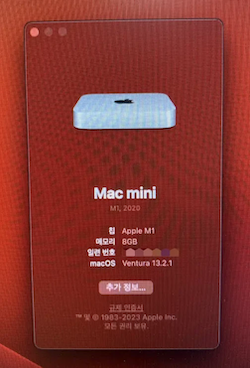
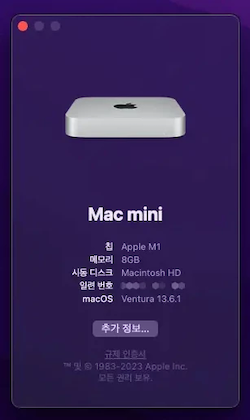
Hello? I am an M1 Mac Mini user living in South Korea. Thank you for your kindness and knowledge and effort. Can I ask you a question? Recently, after updating my Macos to Ventura, I noticed that in the “about this Mac” tab, the submodel names like “M1, 2020” in faint gray under the Mac product name had disappeared. Apparently, it was only in March of this year that I discovered that vague submodel name. But it’s not coming out now. So I updated to Sonoma, and it was the same there too. I did a clean install of monterey, bigsur, and ventura, but none of them show the submodel name. My Mac is an M1, 2020 model, and is not a cto model. There were no hardware changes of any kind. After contacting Apple, they recommended safe mode, OS reinstallation, and nvram deletion, but all failed. What should I do? Your expert opinion is desperately needed. I would really appreciate your reply. Thank you for reading, and I look forward to your reply.
brockwalters
Author
Valued Contributor
November 5, 2023
nam wrote: Hello? I am an M1 Mac Mini user living in South Korea. Thank you for your kindness and knowledge and effort. Can I ask you a question? Recently, after updating my Macos to Ventura, I noticed that in the “about this Mac” tab, the submodel names like “M1, 2020” in faint gray under the Mac product name had disappeared. Apparently, it was only in March of this year that I discovered that vague submodel name. But it’s not coming out now. So I updated to Sonoma, and it was the same there too. I did a clean install of monterey, bigsur, and ventura, but none of them show the submodel name. My Mac is an M1, 2020 model, and is not a cto model. There were no hardware changes of any kind. After contacting Apple, they recommended safe mode, OS reinstallation, and nvram deletion, but all failed. What should I do? Your expert opinion is desperately needed. I would really appreciate your reply. Thank you for reading, and I look forward to your reply.
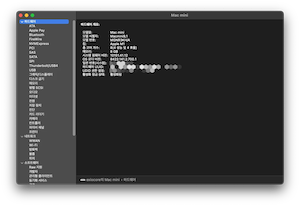
Run the system report to see the full model name.
nam
New Contributor
November 5, 2023
brockwalters wrote: Run the system report to see the full model name.
The full model name appears in the system report. However, the model name still does not appear in small gray letters in the “about this mac” tab. I’m curious why it doesn’t pop up all of a sudden. I heard that Apple’s server checks the model and displays it on the screen, but if it doesn’t appear on the screen, isn’t there something wrong with it?
nam
New Contributor
November 5, 2023
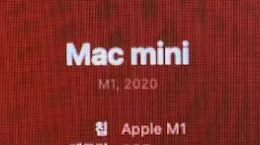
This screenshot was taken in March of this year. This is before the Sonoma update. Now those light gray “M1, 2020” letters are gone.
brockwalters
Author
Valued Contributor
November 6, 2023
nam wrote: The full model name appears in the system report. However, the model name still does not appear in small gray letters in the “about this mac” tab. I’m curious why it doesn’t pop up all of a sudden. I heard that Apple’s server checks the model and displays it on the screen, but if it doesn’t appear on the screen, isn’t there something wrong with it?
If you think there is a problem you should file feedback in “AppleSeed For IT” on this issue. The full marketing model string is available in the CLI on Apple Silicon Macs in the ioreg output (that’s in the script above…) I don’t think it’s being populated in the GUI via curl like it was before on Intel but it’s possible. Either way, if you don’t like it, file feedback.
tkimpton
Honored Contributor
July 3, 2024
i’ve had success using this below:
#!/bin/bash

scriptLog="/var/log/UnapprovedMachine.log"

# Client-side Script Logging Function
function updateScriptLog() {
    echo -e "$( date +%Y-%m-%d\ %H:%M:%S ) - ${1}" | tee -a "${scriptLog}"
}

function GetAppleMarketingName() {

# clearing variables
MARKETING_MODEL=""
LOGGEDINUSER=""
HOME_DIR=""

# logged in user
LOGGEDINUSER=$(stat -f '%Su' /dev/console)

# logged in user home directory
HOME_DIR=$(dscl /Local/Default read /Users/"$LOGGEDINUSER" NFSHomeDirectory | sed 's/NFSHomeDirectory://' | xargs)

# get model name if Apple Silicon
if [ "$(/usr/bin/uname -m)" = 'arm64' ]; then

MARKETING_MODEL=$(/usr/libexec/PlistBuddy -c 'print 0:product-name' /dev/stdin <<< "$(/usr/sbin/ioreg -ar -k product-name)")

# if the machine is not Apple Silicon, we need to quicly open the System Information app as the logged in user and extract the information
elif [ "$(/usr/bin/uname -m)" != 'arm64' ]; then
    if ! [ -e "$HOME_DIR"/Library/Preferences/com.apple.SystemProfiler.plist ]; then
        su "$LOGGEDINUSER" -l -c 'killall cfprefsd'; sleep 2
        su "$LOGGEDINUSER" -l -c '/usr/bin/open "/System/Library/CoreServices/Applications/About This Mac.app"'; sleep 2
        /usr/bin/pkill -ail 'System Information'; sleep 1
    fi

    MARKETING_MODEL=$(defaults read "$HOME_DIR"/Library/Preferences/com.apple.SystemProfiler.plist "CPU Names" | awk -F= '{print $2}' | sed 's|[",;]||g' | sed 's/^[\t ]*//g' | sed '/^[[:space:]]*$/d')
fi

if [ "$MARKETING_MODEL" != "" ]; then
    updateScriptLog "$MARKETING_MODEL"
fi
}

GetAppleMarketingName